
Why Your Transfer Password Matters at LUCKYTOWN PLUS
Secure Your Financial Transactions within the LUCKYTOWN PLUS Ecosystem
Your transfer password (also referred to as your payment PIN or transaction PIN) is a crucial 6-digit code that secures all financial operations at LUCKYTOWN PLUS. It is required for authorizing withdrawals, internal transfers, and other sensitive account activities, ensuring that only you can move your funds.
Two Ways to Manage Your Transfer Password at LUCKYTOWN PLUS
LUCKYTOWN PLUS provides two clear methods for managing your transfer password: you can change it when you know your current PIN, or you can reset it when you have forgotten it, using secure OTP verification to regain control of your LUCKYTOWN PLUS account.
Method 1: Change Transfer Password (When You Know Your Current PIN at LUCKYTOWN PLUS)


Step 1: Access the Main Menu
Open the LUCKYTOWN PLUS app. On the main page, tap the bottom right corner, clearly labeled "MENU", to access your full account options.
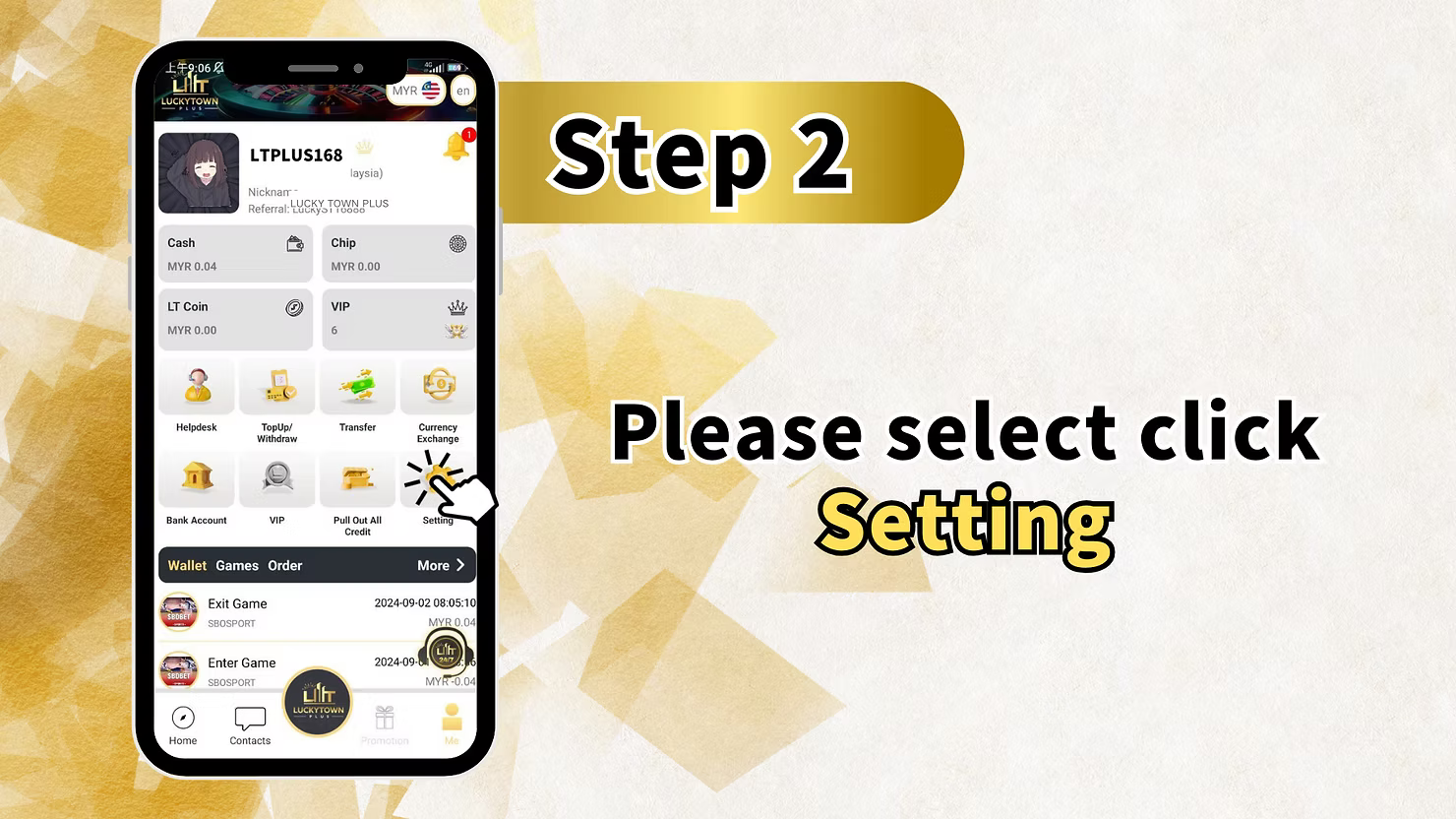
Step 2: Go to Account Settings
From the menu, select "Setting" to open your personal account settings dashboard.
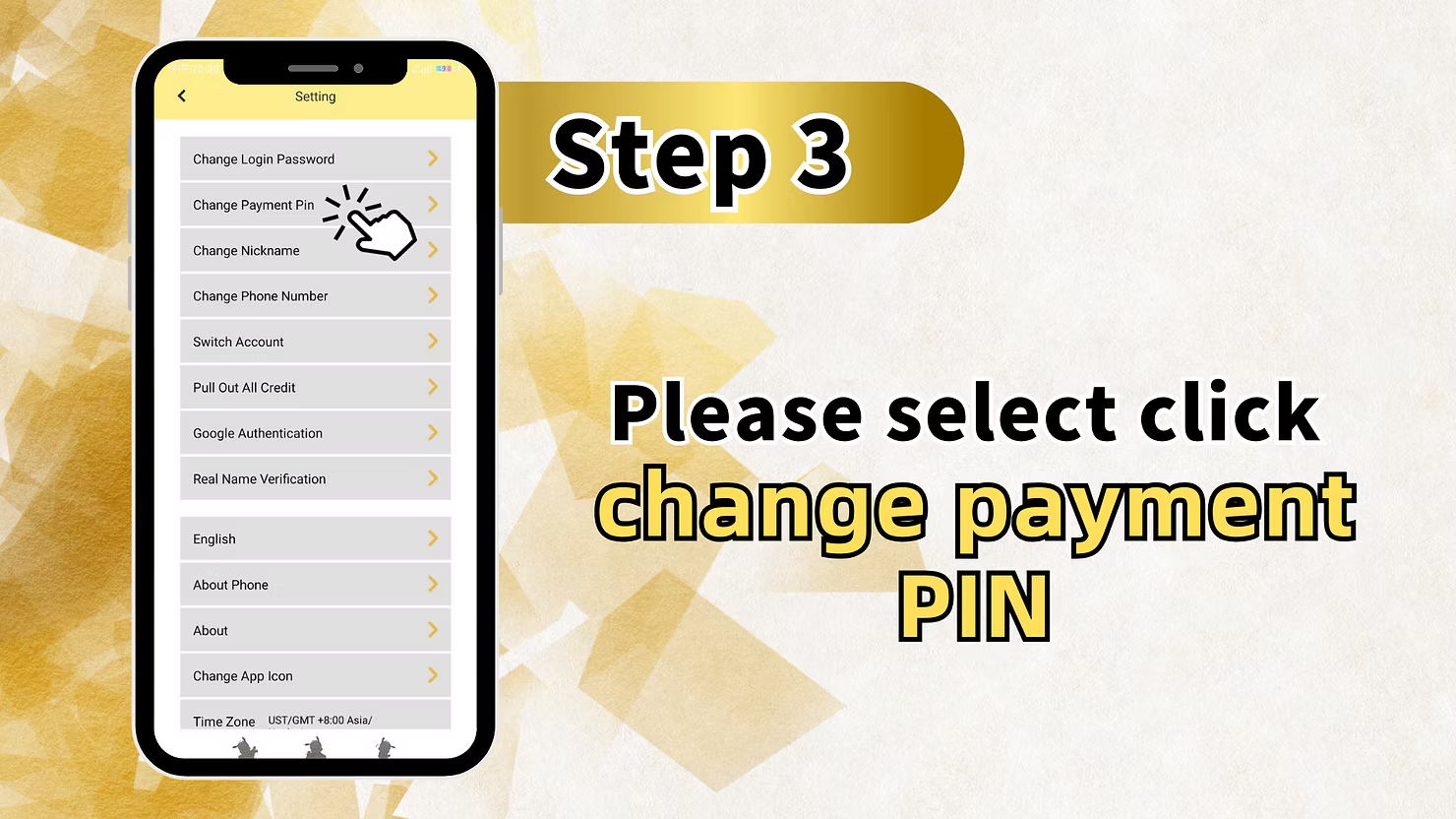
Step 3: Select "Change Payment PIN"
Look for and tap on "Change Payment PIN" or a similarly named option like "Change Transaction Password".
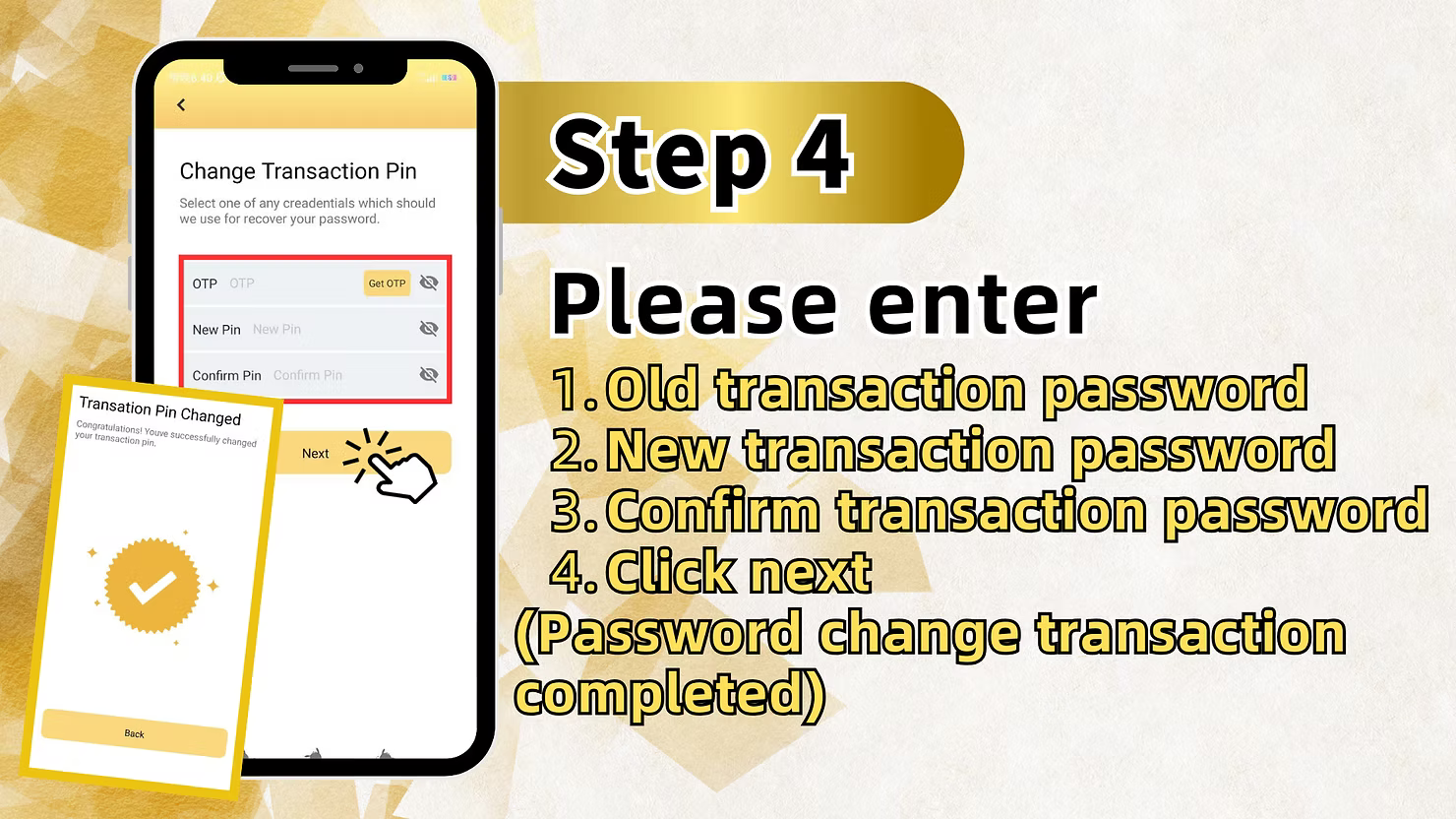
Step 4: Enter Your Current Transaction Password
Tap the input field and enter your current 6-digit transaction password (PIN) to verify your identity.
Step 5: Enter Your New Transaction Password
After successful verification, enter your new 6-digit transaction password.
Step 6: Confirm Your New Password
Re-enter your new transaction password to confirm there are no typos. Tap "Next" to save the change to your LUCKYTOWN PLUS profile.
Step 7: Confirmation of Successful Change
The system will confirm that your transaction password has been successfully changed. Your new PIN is now active for all financial transactions.
Method 2: Forgot Transfer Password (Reset When Forgotten at LUCKYTOWN PLUS)
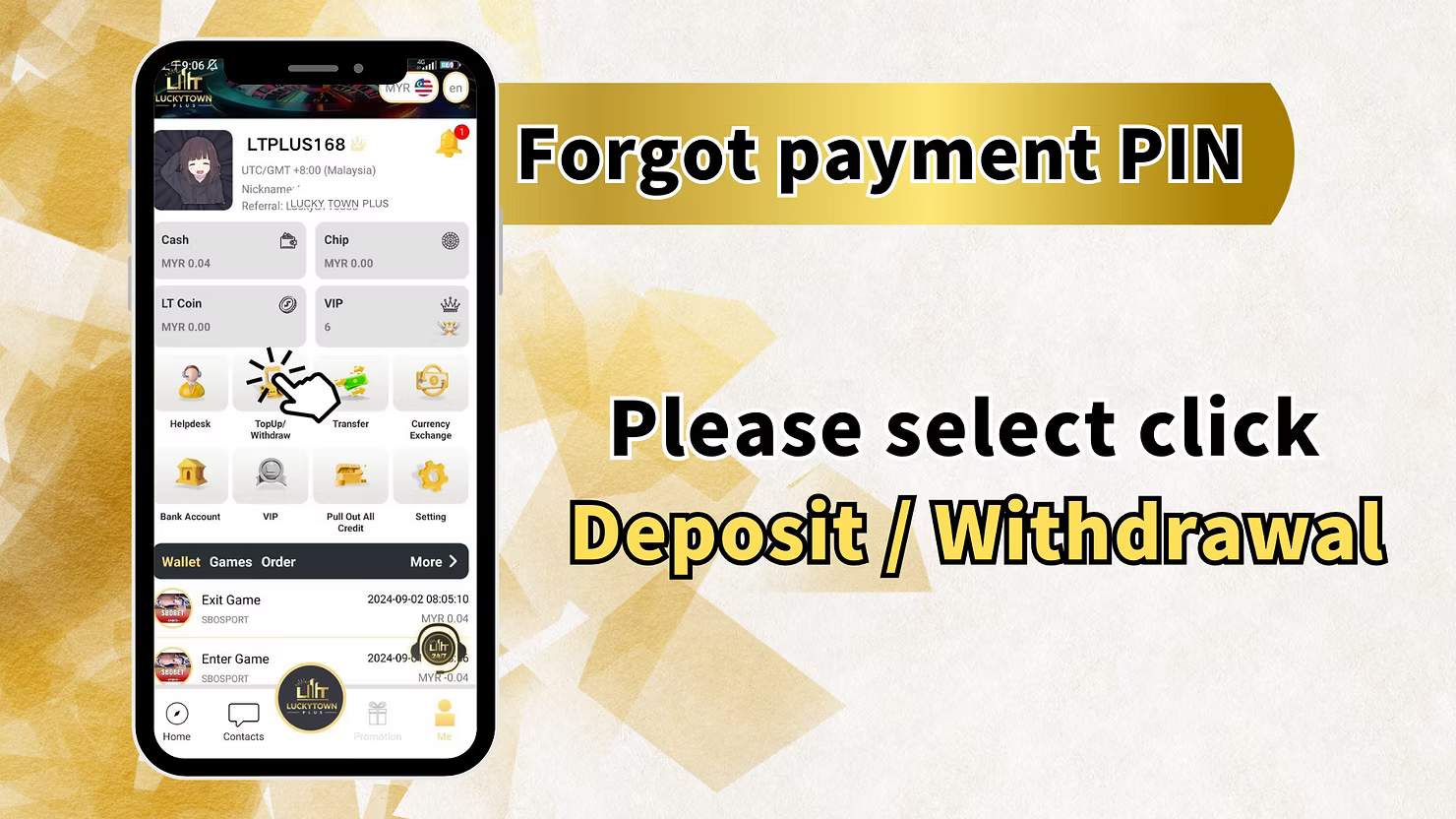
Step 1: Navigate to Deposit/Withdrawal
If you have forgotten your payment PIN, navigate to "Deposit / Withdrawal" from the main menu of the LUCKY TOWN app.
Step 2: Begin the Withdrawal Process
Select "Withdraw" to initiate a withdrawal. This action will prompt the payment PIN entry screen, which is the gateway to the reset process.
Step 3: Agree to the Terms
Check the box "I have paid and agree" and tap "Next" to proceed to the PIN entry screen.
Step 4: Click "Forgot Payment PIN"
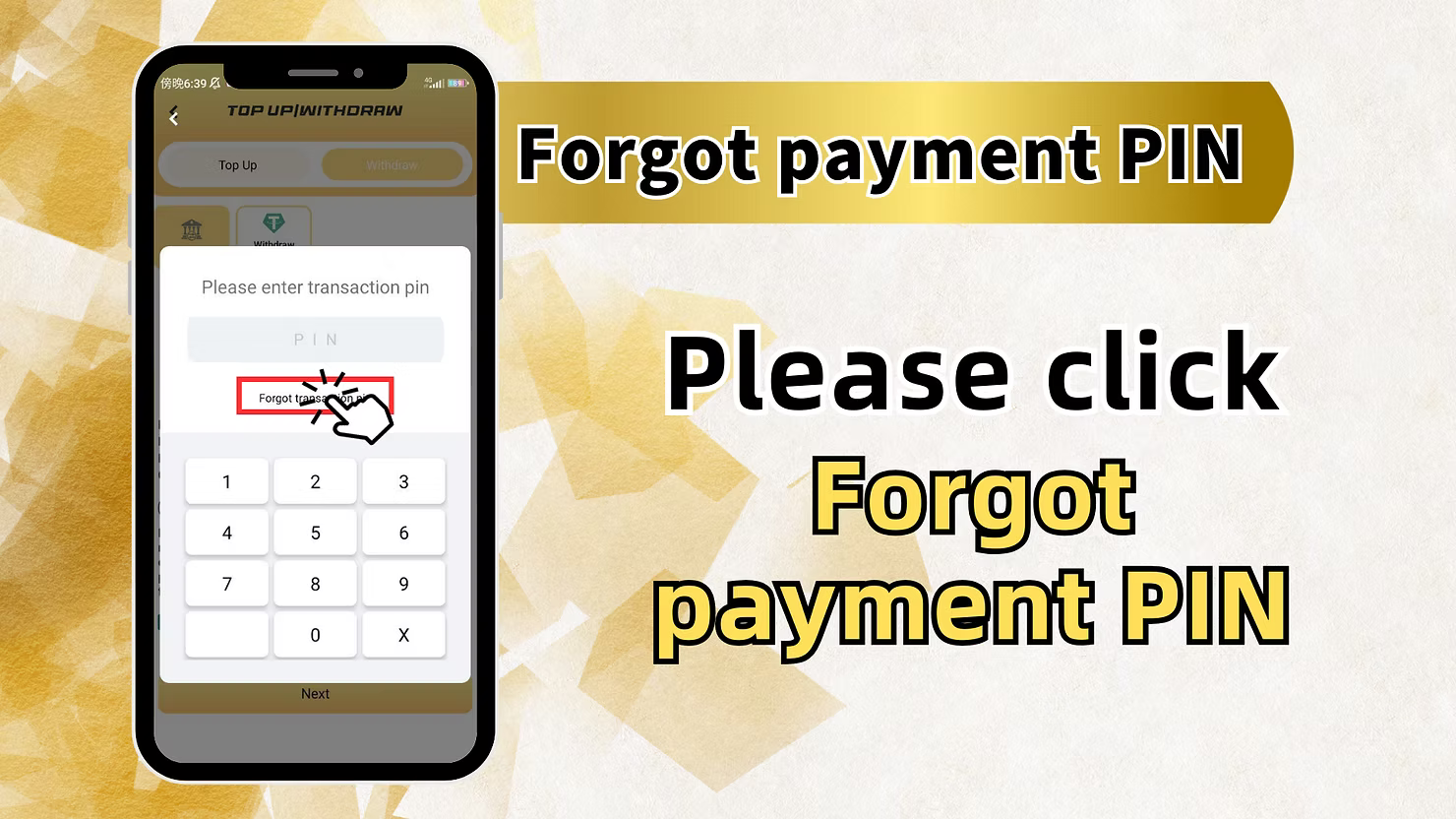
On the PIN entry screen, locate and tap the "Forgot payment PIN" link to begin the secure reset process.
Step 5: Enter Your Registered Phone Number
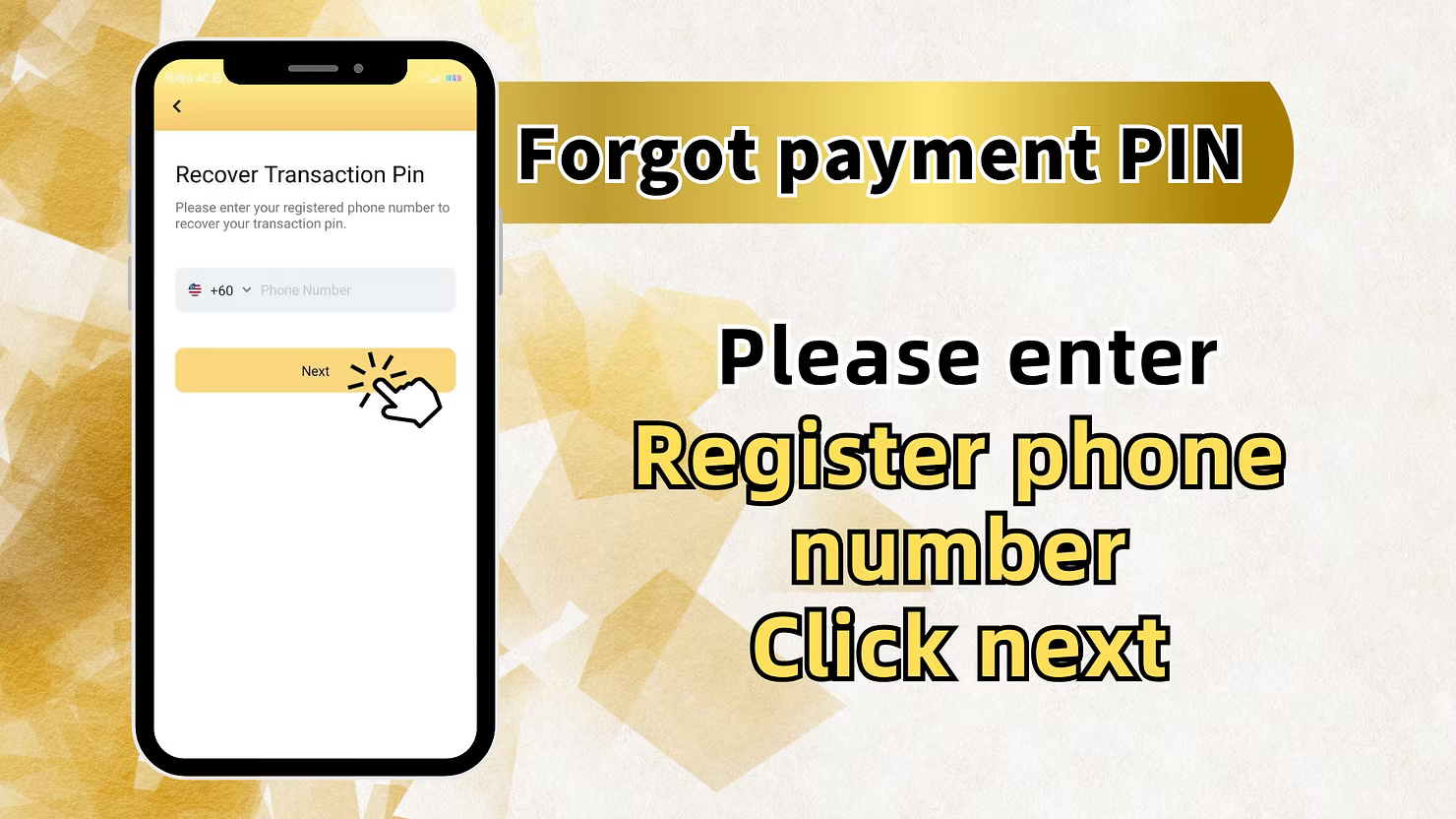
Enter the phone number that is registered with your LUCKYTOWN PLUS account. This is the number where your OTP will be sent.
Step 6: Request an OTP
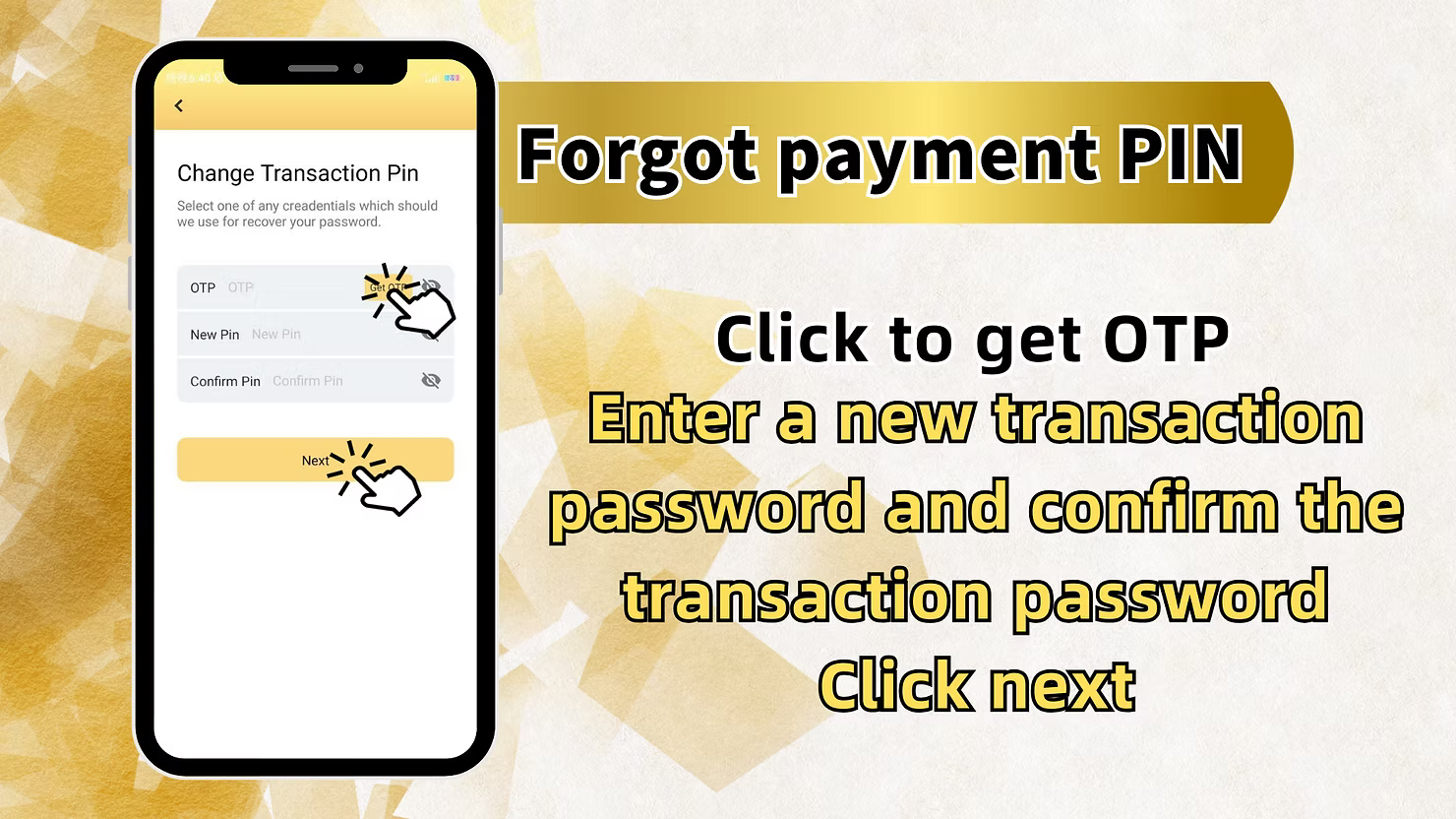
Tap "Get OTP" to request a one-time password. This code will be sent via SMS to the mobile number you just entered.
Step 7: Enter the Received OTP
Enter the OTP you received in the verification field provided. This confirms your ownership of the phone number.
Step 8: Set Your New Transaction Password
Enter your new, desired 6-digit transaction password (PIN).
Step 9: Confirm Your New Password
Re-enter your new transaction password to confirm it. Tap "Next".
Step 10: Confirmation of Successful Reset
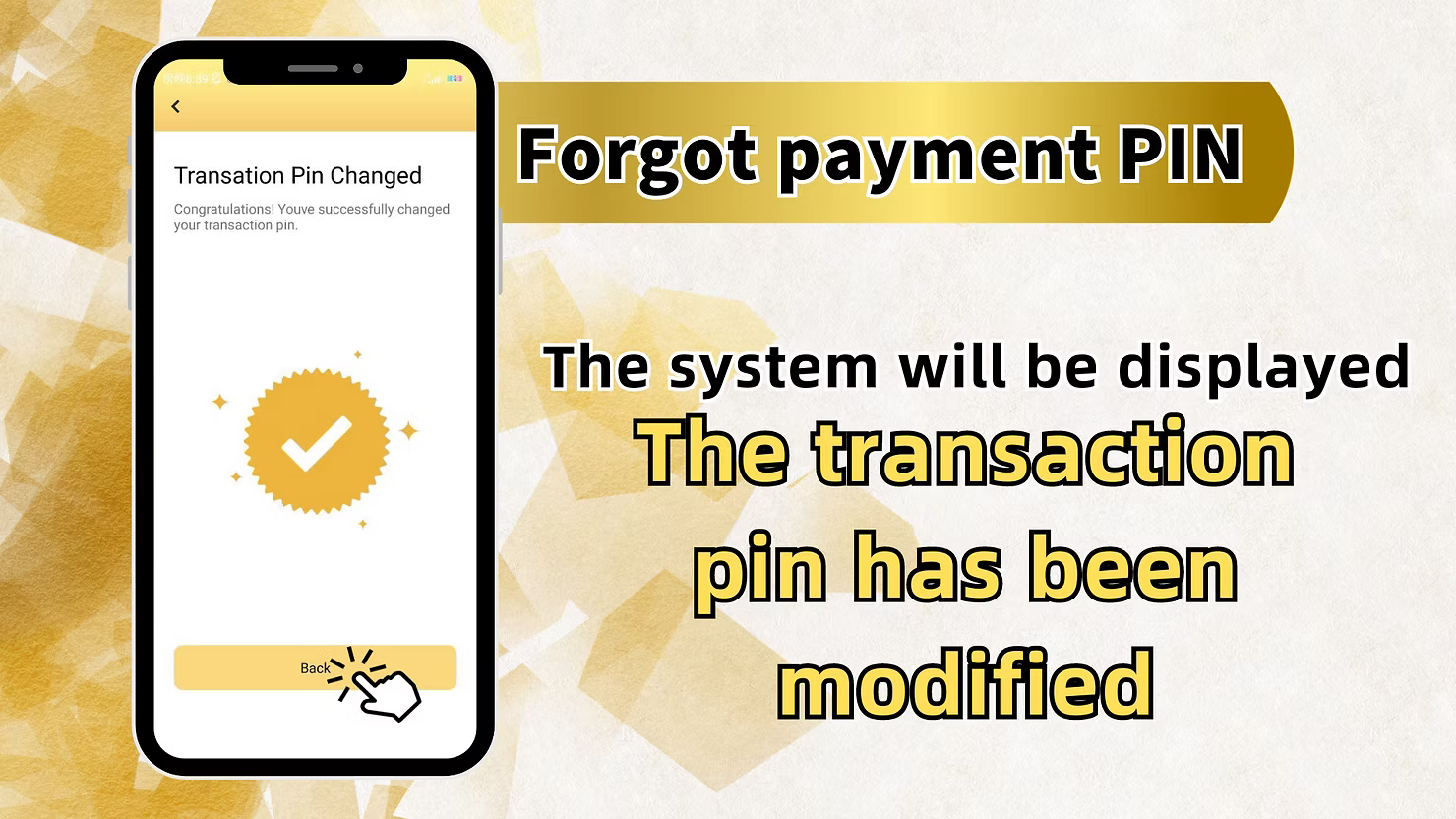
The system will display a message confirming that "The transaction pin has been modified". Your new payment PIN is now active for your LUCKYTOWN PLUS account.
Quick Reference Summary for LUCKYTOWN PLUS Transfer Password
Change PIN (When Known)
Menu → Setting → Change Payment PIN → Enter current PIN → Enter new PIN → Confirm → Done
Reset PIN (When Forgotten)
Deposit/Withdrawal → Withdraw → Agree → Forgot PIN → Enter registered phone → Get OTP → Enter OTP → Set new PIN → Confirm → Done
Important Notes for Transfer Password Security at LUCKYTOWN PLUS
Your Transfer Password is a 6-Digit PIN
Your transfer password at LUCKYTOWN PLUS is always a 6-digit number. Please memorize it and never share it with anyone for any reason.
OTP Security is Paramount
OTP codes are time-sensitive and sent exclusively to your registered phone number. Never share an OTP with anyone. LUCKYTOWN PLUS will never ask for it outside of this secure reset process.
Keep Your Registered Phone Number Updated
Ensure your registered phone number in your LUCKYTOWN PLUS profile is always current, as it is essential for OTP verification and account recovery.
Frequently Asked Questions About Transfer Passwords at LUCKYTOWN PLUS
What exactly is a transfer password?
A transfer password (also called a payment PIN or transaction PIN) is a dedicated 6-digit code required to authorize financial transactions at LUCKYTOWN PLUS, such as withdrawals and internal transfers.
What should I do if I forget my transfer password?
You can easily reset it using the "Forgot Payment PIN" option found during the withdrawal process. You will verify your identity with an OTP sent to your registered phone and then set a new PIN.
How long is the OTP code valid for?
OTP codes are typically valid for a short period, usually just a few minutes. If your code expires, simply request a new one.
What if I don't receive the OTP on my phone?
First, verify that you entered the correct registered phone number. Check your mobile network reception and your SMS inbox (including any spam or junk folders). If the issue persists, contact LUCKYTOWN PLUS customer support.
Can I change my transfer password without knowing my old one?
Yes, absolutely. If you have forgotten your old PIN, use the "Forgot Payment PIN" reset process. You do not need to know your old PIN to set a new one.
Is the transfer password the same as my login password?
No. Your transfer password is a separate 6-digit PIN used only for securing financial transactions. Your login password is used for accessing your LUCKYTOWN PLUS account and can be longer.
Who should I contact if I encounter issues with my transfer password?
If you face any problems during the reset process or have other issues with your transfer password, please contact LUCKYTOWN PLUS customer support immediately through the app's Helpdesk for prompt assistance.
Reset Your LUCKYTOWN PLUS Transfer Password Today!
Forgot your payment PIN? Don't worry. Follow our comprehensive step-by-step guide to reset your transfer password at LUCKYTOWN PLUS quickly and securely using OTP verification.
Reset Transfer Password at LUCKYTOWN PLUS