
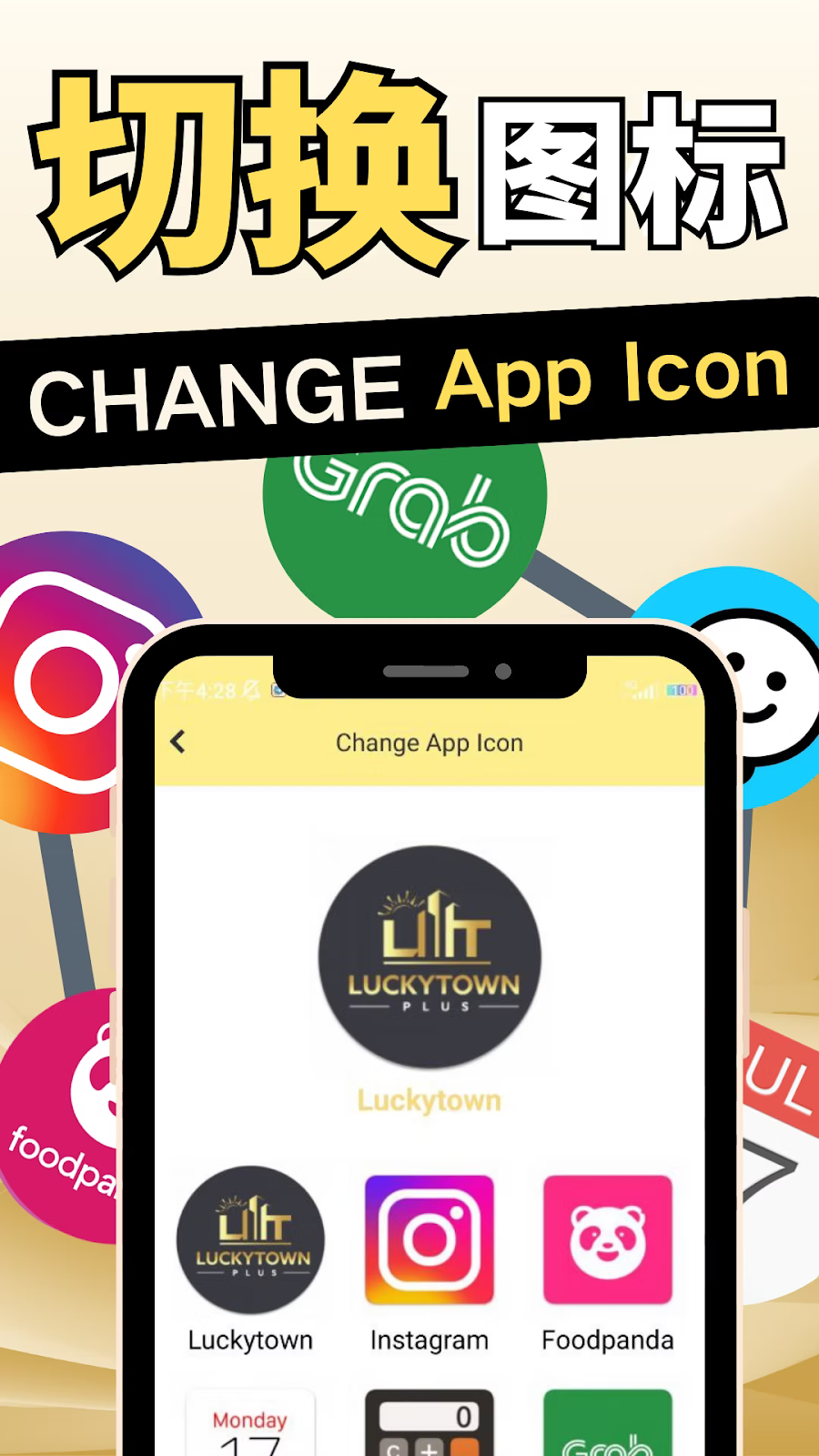
Personalize Your LUCKYTOWN PLUS Experience
LUCKYTOWN PLUS offers a unique and fun feature that allows you to change your app icon to match your personal style. Choose from a variety of icons, including different LuckyTown designs, as well as popular styles like Instagram, Foodpanda, Monday, Grab, and Waze, making your home screen truly your own.
Multiple Icon Options to Express Yourself
Express your mood and personality with a diverse selection of icons. Options include the standard LUCKYTOWN PLUS icon, alternative Luckytown text designs, and creative takes on well-known app styles, all available within your LUCKYTOWN PLUS settings.
Easy to Switch in Just a Few Seconds
Changing your app icon at LUCKYTOWN PLUS is incredibly simple and takes just a few seconds. Follow our step-by-step guide below to instantly customize your home screen and give your app a fresh new look.
Step-by-Step Guide to Change Your App Icon at LUCKYTOWN PLUS
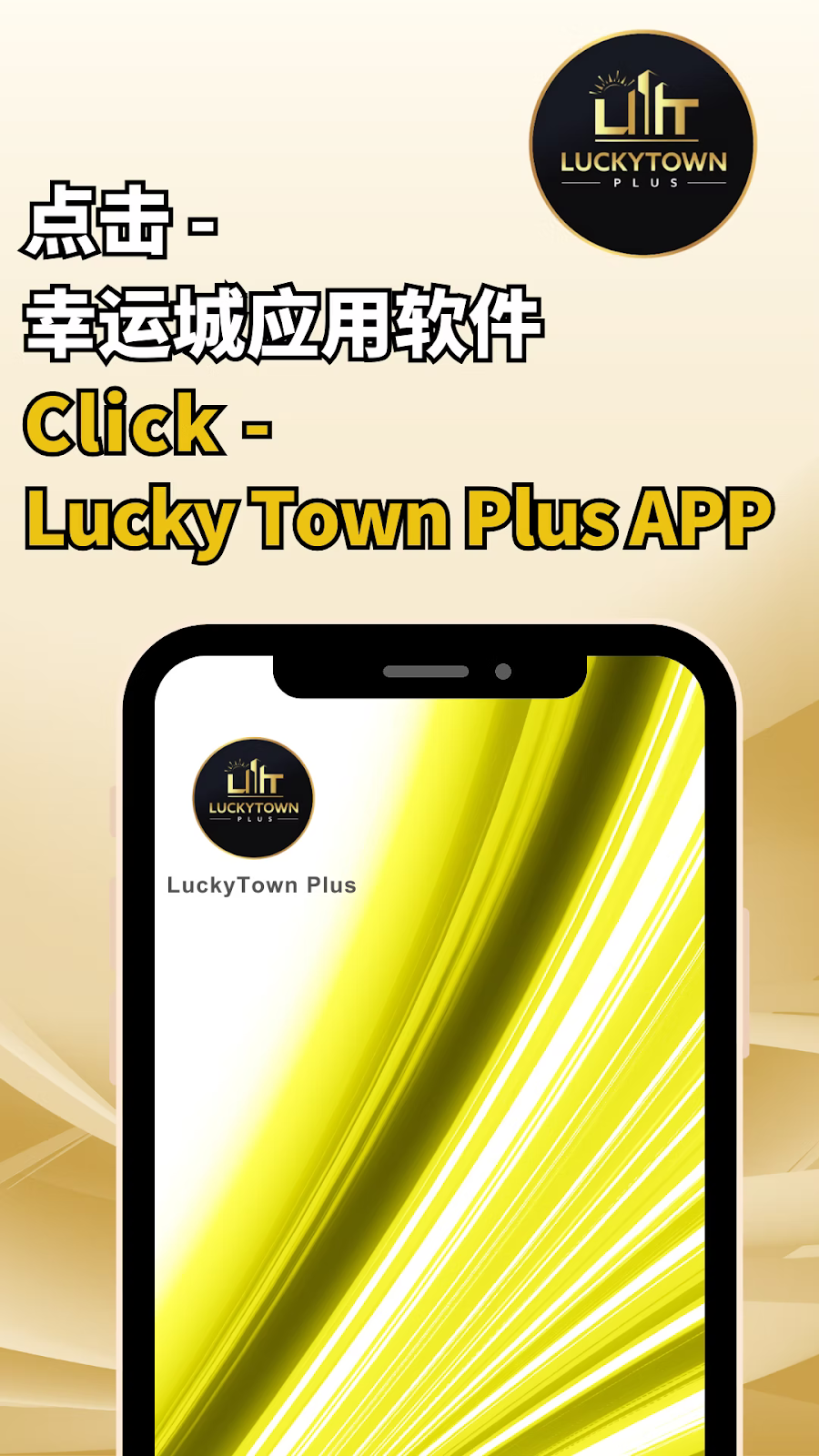

Step 1: Access Your LUCKYTOWN PLUS Account
Open the LUCKYTOWN PLUS app on your mobile device. From the main page, tap on your profile icon or the account section to navigate to your personal dashboard and settings.
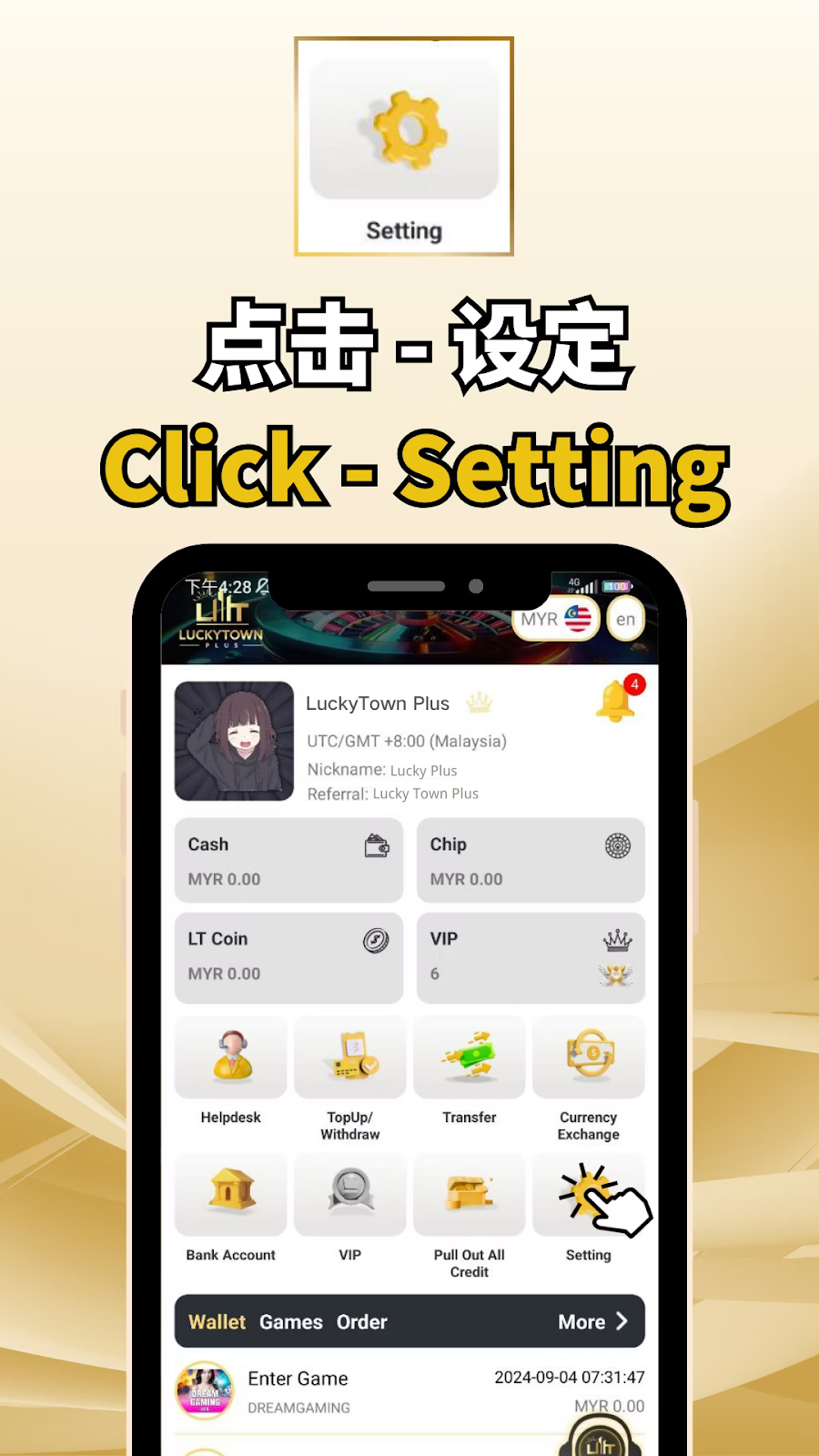
Step 2: Go to the Settings Menu
Tap on "Setting" to open your comprehensive account settings menu.
Within Settings, you will see various options for managing your LUCKYTOWN PLUS account, including:
- UTC/GMT +8:00 (Malaysia) time zone setting
- Your Nickname (e.g., Lucky Plus)
- Your Referral code (e.g., Lucky Town Plus)
- Your current Cash, Chip, and LT Coin balances
- Your current VIP level
- Access to Helpdesk, TopUp/Withdraw, Transfer, Currency Exchange, Bank Account, VIP, Pull Out All Credit, Wallet Games Order, and more.
Step 3: Find the "Change App Icon" Option
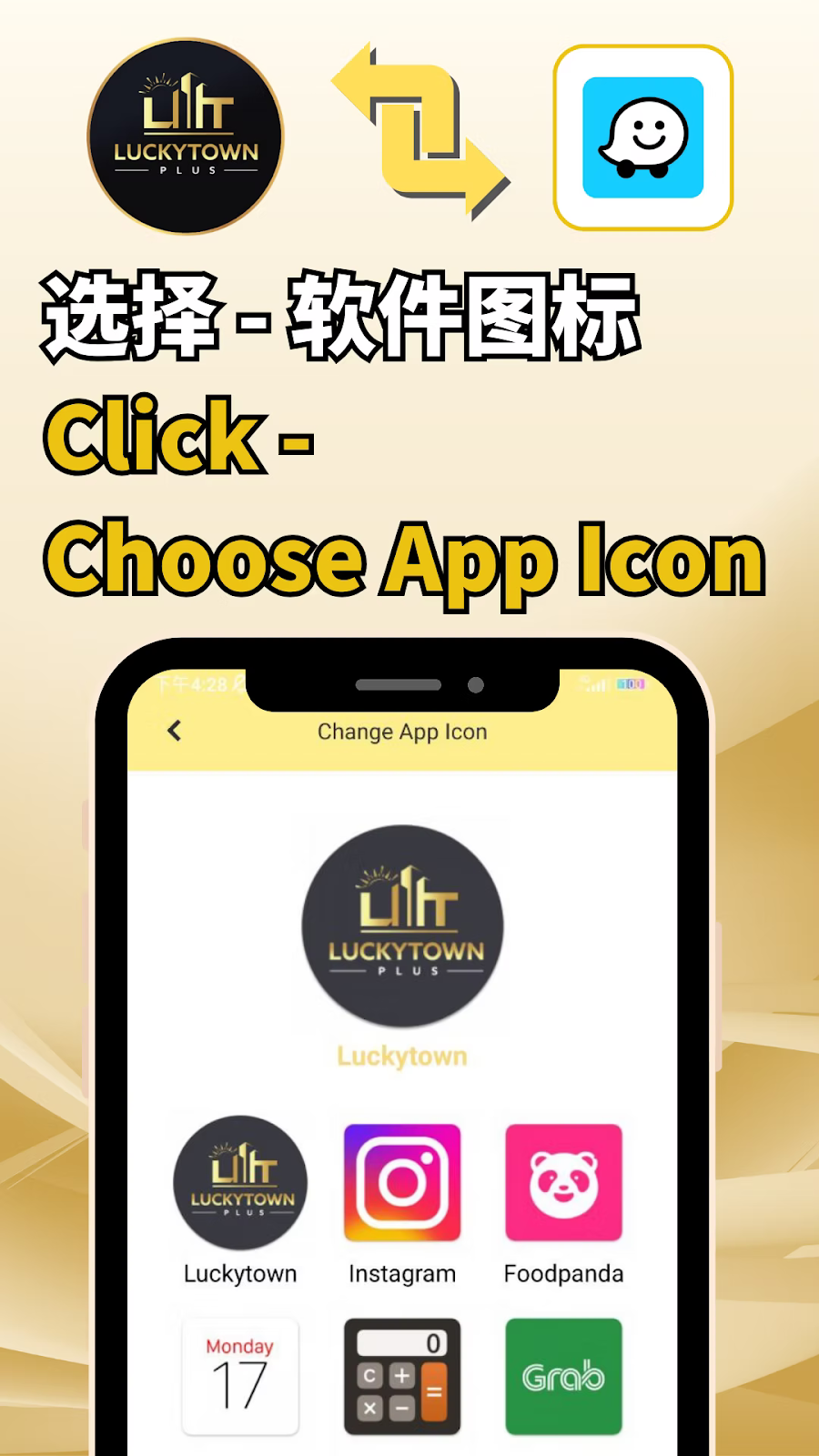
Scroll through the settings menu until you locate the "Change App Icon" (or similarly named "ChangeApplcon") option. Tap on this to access the fun icon customization feature.
Step 4: Browse the Gallery of Available Icons
You will be presented with a gallery of all the available app icons you can choose from for your LUCKYTOWN PLUS app. The options include:
- LUCKYTOWN PLUS (the standard, official icon)
- Luckytown (an alternative text-based design)
- LUCKYTOWN PLUS (a second visual variation)
- Luckytown (a second alternative design)
- An Instagram style icon
- A Foodpanda style icon
- A Monday style icon
- A Grab style icon
- A Waze style icon
- And more creative options!
Step 5: Select Your Preferred Icon
Browse through the options and tap on the icon you wish to use. The selected icon will be highlighted to clearly indicate your choice.
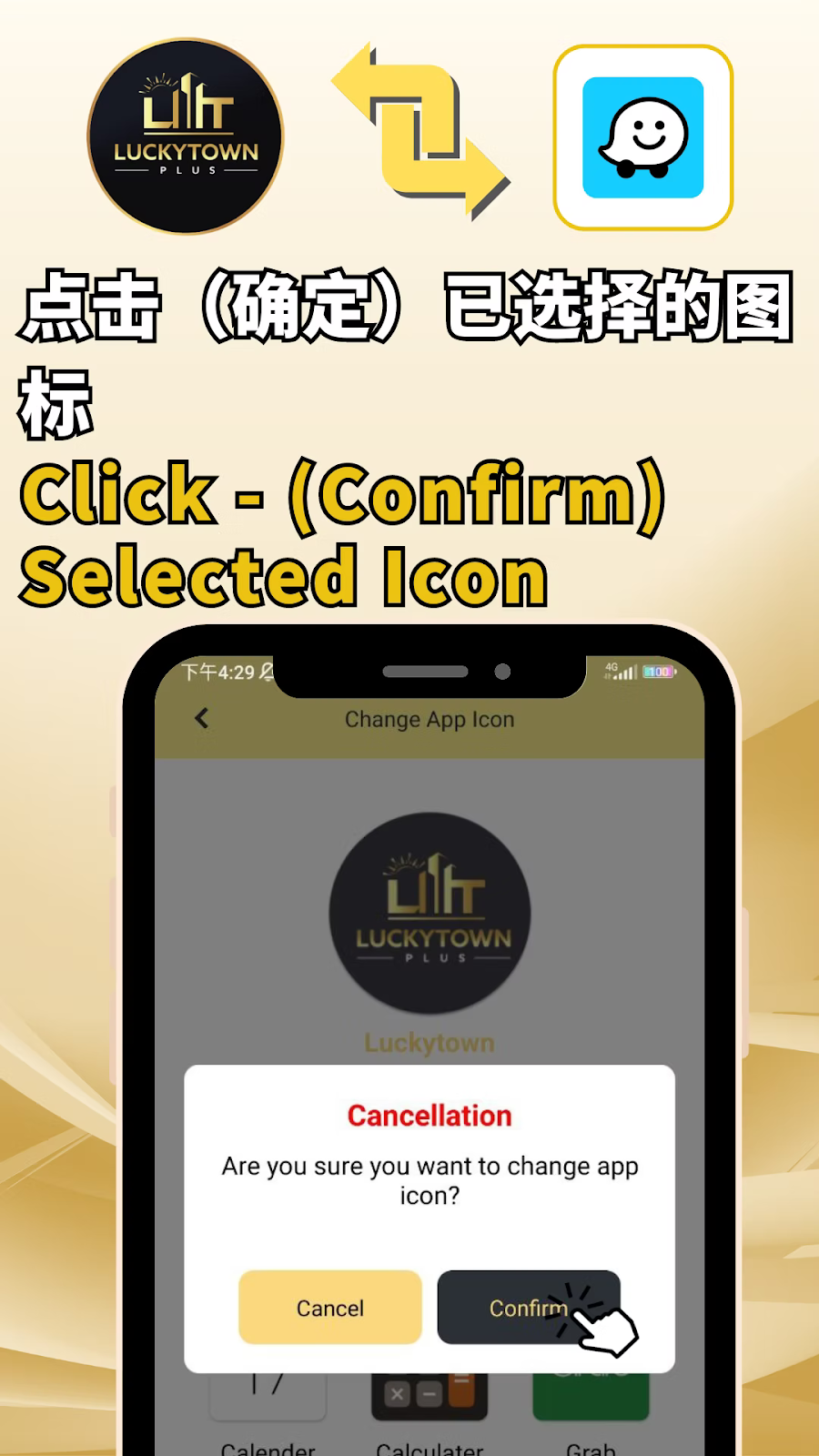
Step 6: Confirm Your Selection
After selecting an icon, a confirmation dialog will appear on your screen, asking:
"Are you sure you want to change app icon?"
You will see two buttons:
- Cancel – to keep your current icon.
- Confirm – to apply the new icon you have selected.
Step 7: Confirm the Change
Tap "Confirm" to finalize your icon selection and proceed with the change.
Step 8: Success Confirmation
The system will then display a success message, such as "Switch APP Icon Successfully" or "Change App Icon Successfully".
Your new app icon is now applied and will instantly appear on your device's home screen.
Available App Icon Options at LUCKYTOWN PLUS
Full Icon Gallery Overview
LUCKYTOWN PLUS offers a fun and regularly updated variety of app icons to keep your home screen fresh:
- LUCKYTOWN PLUS – The standard, official icon for the brand.
- Luckytown – An alternative icon with a different text style.
- LUCKYTOWN PLUS – A second visual variation of the main logo.
- Luckytown – A second alternative design.
- Instagram style – A fun take on the popular social media icon.
- Foodpanda style – Inspired by the food delivery app.
- Monday style – A work or calendar-themed icon.
- Grab style – Inspired by the transportation and delivery app.
- Waze style – A navigation-themed icon.
- And more options are added periodically!
Quick Reference Summary for Changing Your Icon
Change App Icon Steps Summary
Open app → Go to Settings → Tap Change App Icon → Browse available icons → Select your preferred icon → Confirm your choice → See success confirmation → New icon appears on home screen
Important Notes for Changing Your App Icon
Icon Changes Are Applied Instantly
Once you confirm your selection, the app icon changes immediately on your device's home screen. No app restart or device reboot is needed.
You Have Multiple Choices to Experiment With
You can change your LUCKYTOWN PLUS app icon as many times as you like. Feel free to experiment with different styles to match your mood or home screen theme.
Icon Change Only Affects Your Device
Changing the app icon is a personal customization that only affects your own device. Other users will still see whatever icon they have chosen for themselves.
Frequently Asked Questions About Changing the App Icon at LUCKYTOWN PLUS
What is the "Change App Icon" feature?
It is a fun and unique customization feature within the LUCKYTOWN PLUS app that allows you to change the app's home screen icon to a variety of different designs.
How many icon options are available to choose from?
Multiple options are available, including various LuckyTown variations and creative takes on popular styles like Instagram, Foodpanda, Monday, Grab, and Waze. New icons may be added over time.
Does changing the icon affect the app's functionality?
No, not at all. The icon change is purely a visual customization. All of the app's functions, features, and notifications remain exactly the same.
Can I change back to the original LUCKYTOWN PLUS icon?
Yes, absolutely. Simply follow the same step-by-step process and select the original LUCKYTOWN PLUS icon from the gallery.
How long does it take for the icon change to take effect?
The change is instant. As soon as you tap "Confirm" on the success screen, the new icon will appear on your home screen.
Will changing the icon affect my app notifications?
No. Notifications and all other app features work perfectly normally, regardless of which icon you have chosen.
Is this feature available on both Android and iOS devices?
The feature is available on most supported devices. Please check the settings menu in your LUCKYTOWN PLUS app for its availability on your specific device.
Can I request that new icon designs be added?
We always welcome user suggestions! Please feel free to contact LUCKYTOWN PLUS customer support with your ideas for new and creative icon designs.
Why can't I find the "Change App Icon" option in my settings?
First, ensure that your LUCKYTOWN PLUS app is updated to the latest version. If the option is still unavailable, please contact our customer support team for assistance.
Who should I contact if I have issues with changing the icon?
For any issues related to changing your app icon, please contact LUCKYTOWN PLUS customer support immediately through the app's Helpdesk for prompt assistance.
Customize Your LUCKYTOWN PLUS App Icon Today!
Ready to personalize your LUCKYTOWN PLUS experience? Follow our simple step-by-step guide to change your app icon. Choose from LuckyTown, Instagram, Foodpanda, Monday, Grab, and more. Express yourself with every tap on your home screen!
Change App Icon at LUCKYTOWN PLUS